

Workflows.
You’re copy-pasting prompts into your AI tool. That’s not wrong. But it’s not a system. Here’s the difference.

You open Claude. You paste a prompt. You get an answer. You close the tab.
That’s prompting. It works. I did it for months. I still do it for the fast stuff.
But there’s a ceiling to it, and at some point you hit it. Not with a crash. More like a slow friction. You realize you’ve explained your writing style to Claude eleven times. You realize the output was great last Tuesday and mediocre today and you can’t tell if it’s the model, or you, or both. You realize the thing you need most isn’t a better prompt. It’s a system that doesn’t depend on you remembering to do it right.
That’s the difference between prompting and a workflow. And once you see it, you can’t unsee it.
1 - The ceiling you’re about to hit.
Let me describe it more specifically, because I think a lot of people are sitting exactly here and haven’t named what’s wrong.
Prompting is reconstructive. Every time you need an output, you rebuild the context from scratch. You paste the instructions you saved in a note somewhere. You add the background the tool needs. You adjust for whatever mood you’re in, whatever you can remember from the last time it worked well. The output quality isn’t just a function of the prompt. It’s a function of how well you reconstructed the prompt today.
And here’s the part nobody talks about: the model is a variable too. Claude updates. ChatGPT updates. Anthropic and OpenAI run experiments in the background. The tool you used on Monday is not quite the same tool you’re using on Friday. You feel it in your outputs before you can articulate what changed.
This applies equally across tools. ChatGPT, Gemini, Claude. Same ceiling at the prompting level. The moment you need consistency, repeatability, or anything that touches a tool outside the chat window, you’ve outgrown what prompting alone can do.
The good news: there’s a next level. Most people don’t know it’s there because nobody explained that the map had more to it.
2 - There’s a spectrum. Prompting is just the start.
The spectrum looks like this:
Prompt → Skill → Scheduled workflow
A prompt is a single request. Every time you need the output, you make the request again. This is where most people live.
A skill is a saved instruction set that lives inside Claude. When you use one, Claude already knows the job before you type anything: the format, the context, the constraints, the things you always want it to do and the things you never want it to do. You don’t reconstruct the instructions. You just start. Skills only need Claude chat. No Pro subscription, no desktop app.
I’ll cover both methods for building skills next week, because they deserve their own article. The short version: you can either build one from scratch using the Add new skill button, or you can have a conversation with Claude, get the output where you want it, and then ask Claude to package everything you’ve worked out into a reusable skill. That second method is what I use.
A scheduled workflow is different again. It runs on a timer or trigger, moves data across tools, and produces an output without you initiating it. Two types matter here, and understanding the difference saves you a headache:
Cowork routines run in the cloud. Laptop closed, machine off, they still run. This is where connectors do the real work. A routine can reach into your Gmail, pull data from Notion, push outputs wherever they need to go, completely on its own. You set it up in Claude Code.

Cowork scheduled tasks run locally on your machine. The desktop app needs to be open and the laptop needs to be on. More flexibility for working with local files, but you’re tied to your hardware. This is an important distinction: if you want something running at 3am while you sleep, it’s a routine, not a scheduled task.
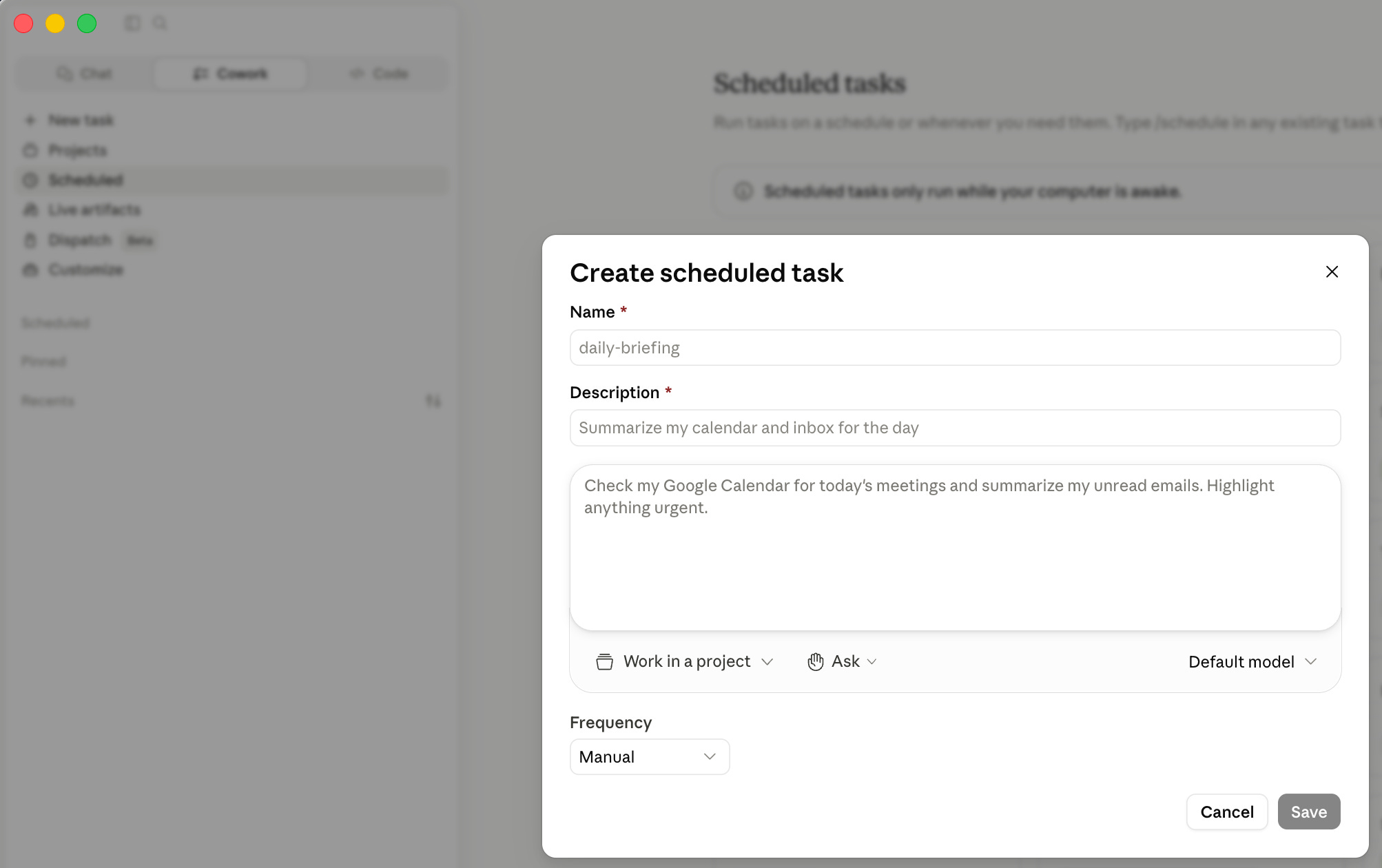
Both types require a Pro subscription and the Claude desktop app to set up.
Now, the part that changes what’s possible: connectors.
Claude can connect to Gmail, Notion, Slack, and other tools you already use. Pulling data in, pushing outputs out, triggering actions across your actual stack. You can check what’s available under the Connectors section in Claude.
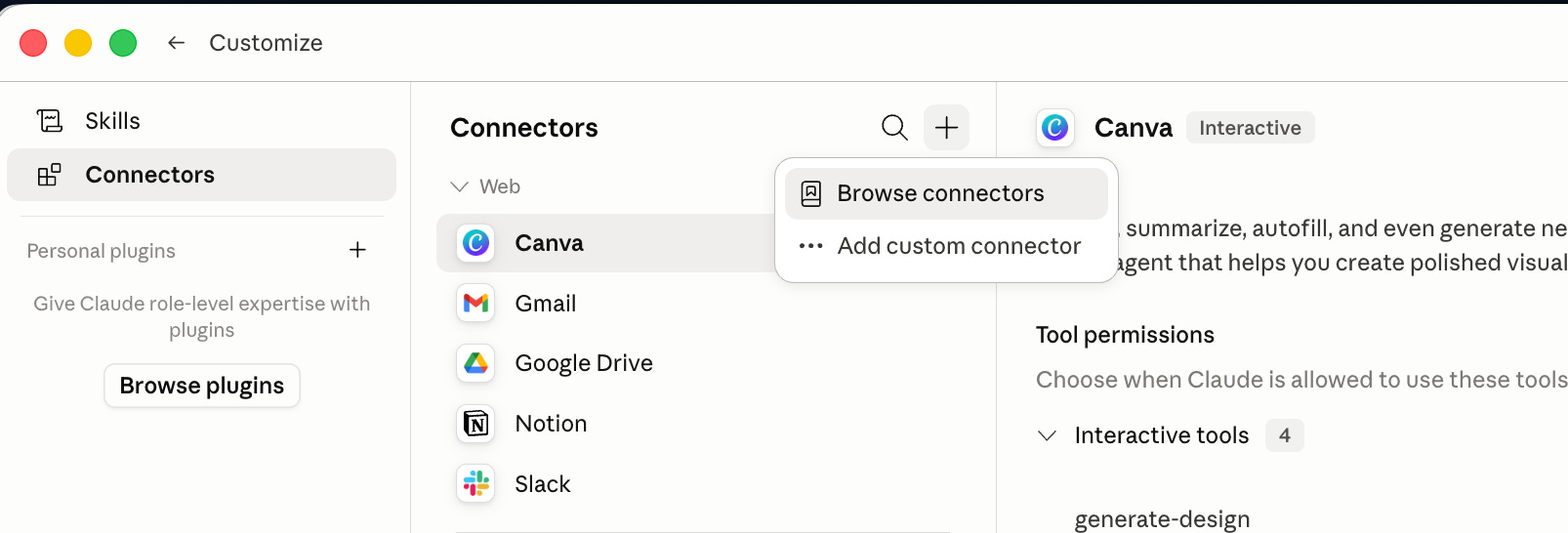
If a tool you need isn’t in the directory yet, you’re not stuck. Find the tool’s MCP server URL in its documentation or developer settings, paste it under Add custom connector, and you’re in. The standard that makes this possible is called MCP, Model Context Protocol, and the URL is all you need to know about it.
For prompting, ChatGPT, Gemini, and Claude are broadly comparable. For workflows, Claude is currently the strongest non-technical option because of Cowork. If you want to go further and build something more robust that isn’t tied to any single AI platform, Claude Code or OpenAI Codex is where that goes. I have a full setup guide here if you’re ready for that.

But here’s the thing I want to name before we get into the examples. The shift from prompting to workflows isn’t a technical shift. It’s an organizational one. You’re not learning to code. You’re learning to think about your work as a repeatable system before you open the tool. That’s it. Everything else is just setup.
3 - Three examples from my own stack.
A. The Substack content engine.
I subscribe to too much. I write too much. And for a long time I had no real answer to “what’s actually working?” on Substack.
I had feelings about it. I had hunches. I noticed that some notes got more engagement than others, but I couldn’t tell you why with any confidence.
So I built a system that answers the question from data instead of intuition. It scans 125 of my past Substack Notes, scores them against engagement metrics, and ranks them by format. The finding that came back: personal_story format is 3.8x overrepresented in the top-performing quartile. Not a hunch. A pattern in the data.
From that, 21 draft posts were generated and pushed automatically to my Notion database. Ready for the week. Formatted. Prioritized. Done.
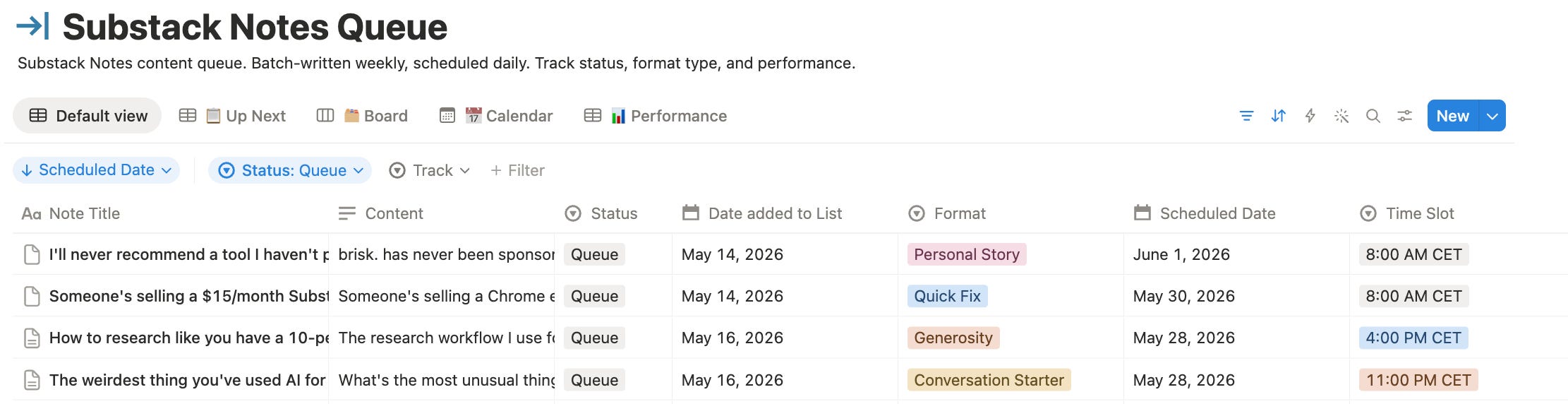
Any database works here, not just Notion. That’s just what I use.
The difference from prompting: I never sit down and ask “what should I write next?” The system answers that question on a cadence. It doesn’t depend on my energy or memory or how good I am at self-assessing that day. The decision moved out of my head and into a process.
B. The LinkedIn analytics engine.
Same logic, different problem.
I was posting consistently but making strategy decisions based on gut feel. The hook felt strong. The timing seemed right. But was it?
I built a system that runs hook-lift and timing analysis on my actual post data. The output lives in a live dashboard with two tabs I check every week.
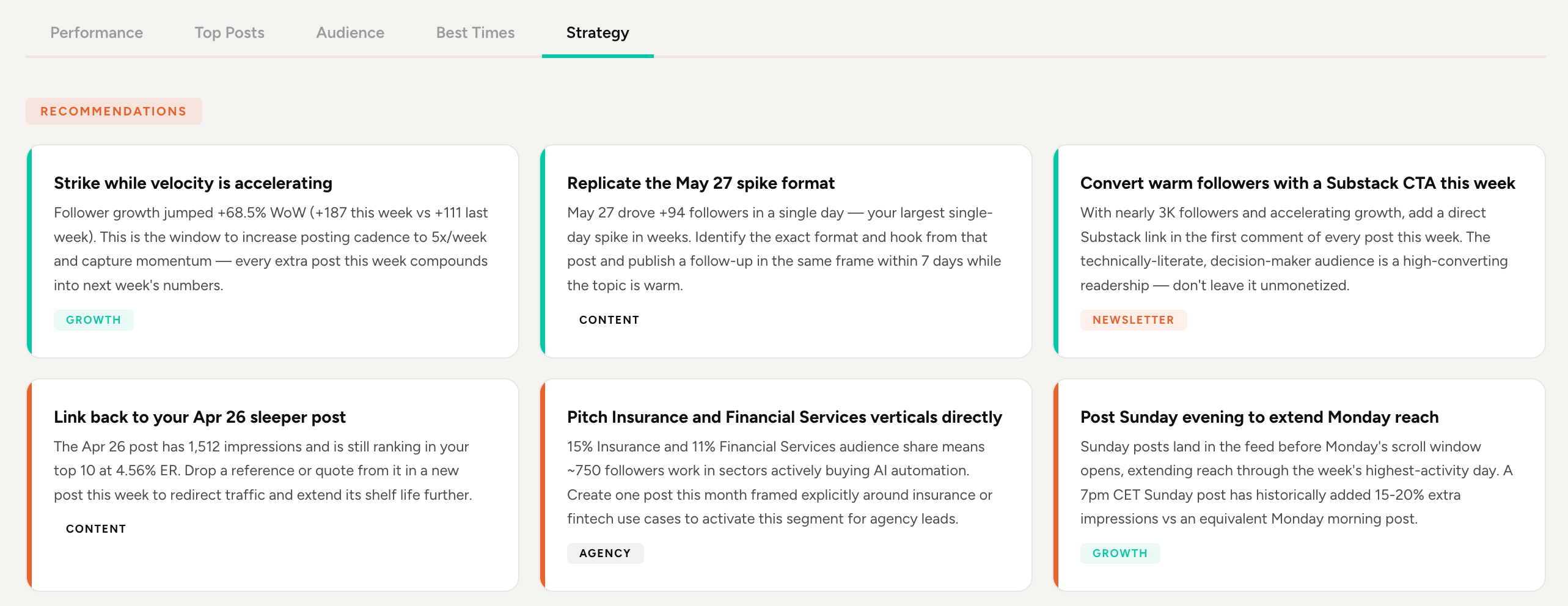
The strategy tab surfaces patterns from past performance: admitted weakness framing produces a 2.88x engagement lift. AI news without personal stake scores 0.28x. That second number changed what I write about more than any piece of advice I’ve read on LinkedIn growth. It also generates a recommended posting cadence: 9 posts a week, front-loaded Monday and Tuesday with the strongest hook types, Sunday personal story to prime the audience for Monday.
The best times tab breaks my audience down by timezone, then maps optimal posting slots against day-of-week quality. Peak, good, or low. Based on what actually happened in my own data over time, not someone else’s “best time to post on LinkedIn” article.
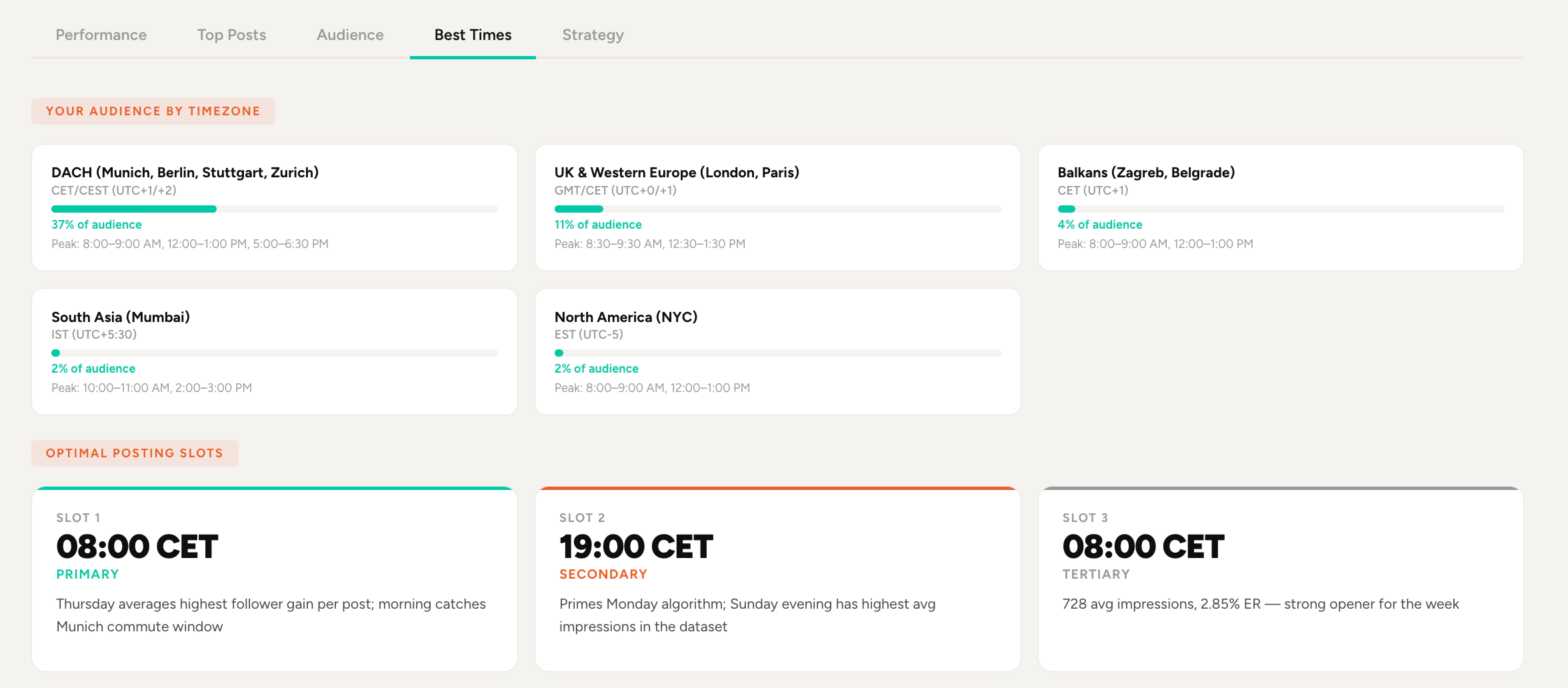
I’m not asking “was this post good?” I’m running the same analysis framework against fresh data on a cadence and reading the results. One is a question. The other is a system.
C. The newsletter scanner.
This one I want to describe differently, because it illustrates something the first two examples don’t.
It scans and summarizes the newsletters landing in my inbox on a schedule, so I stay informed without spending time on triage. It’s a Cowork scheduled task, which means the laptop needs to be on when it fires. You can also set it up as a Cowork routine if you want it running in the cloud regardless of whether your machine is open.
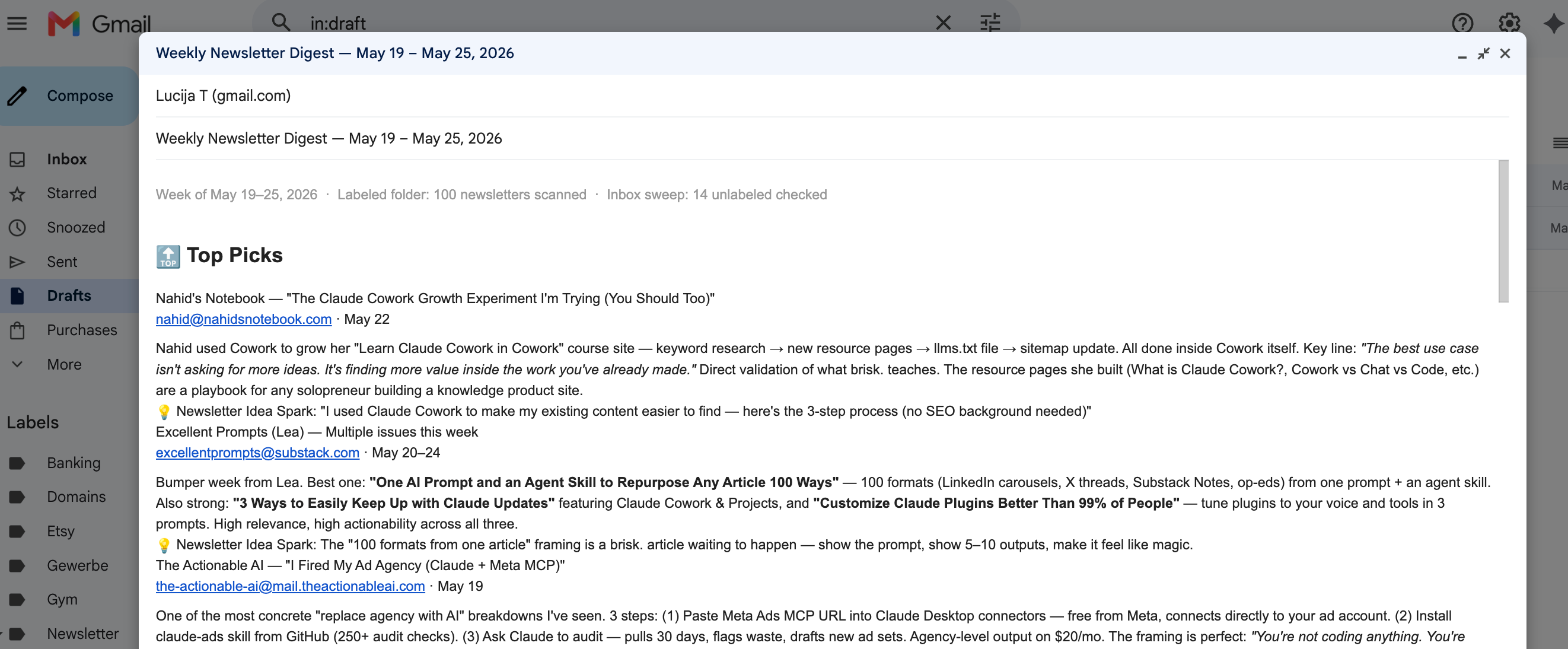
But here’s what makes this example matter beyond the mechanics: I didn’t know I needed it.
I didn’t sit down one day and think “I should automate my newsletter reading.” The need wasn’t visible to me, because the workflow couldn’t exist until connectors existed. You can’t tell Claude “scan my inbox” through a plain prompt. It has no access. The moment Gmail became connectable, a whole category of possible workflows appeared that simply didn’t exist the week before.
That’s what connectors unlock, and it’s genuinely different from what I expected. Not just the automation of things you already do manually. Entirely new workflows you’d never have thought to build because they had no path to existing before.
I wrote a full article about this one. It’s called “read.” and it covers the setup, what it replaced, and the specific kind of mental clutter it removed.

4 - Where to start.
One question picks the right path.
Does it need to run without you, and does it touch external tools? Start with a Cowork routine. Runs in the cloud, works with the laptop off, connects to your actual stack. Requires Pro and the desktop app. This is the most powerful entry point, and also the most setup.
Does it need a schedule but only touches local files? Cowork scheduled task. Same subscription requirements, but it runs on your machine. The laptop needs to be on when it fires. Useful for file-based work, less reliable for anything you want fully unattended.
Is it a repeating task that doesn’t need a schedule? Start with a skill. Claude chat only, no Pro subscription required. You build the instruction set once, and it’s there every time you need that output. This is the lowest-friction entry point, and the right place for most people to begin.
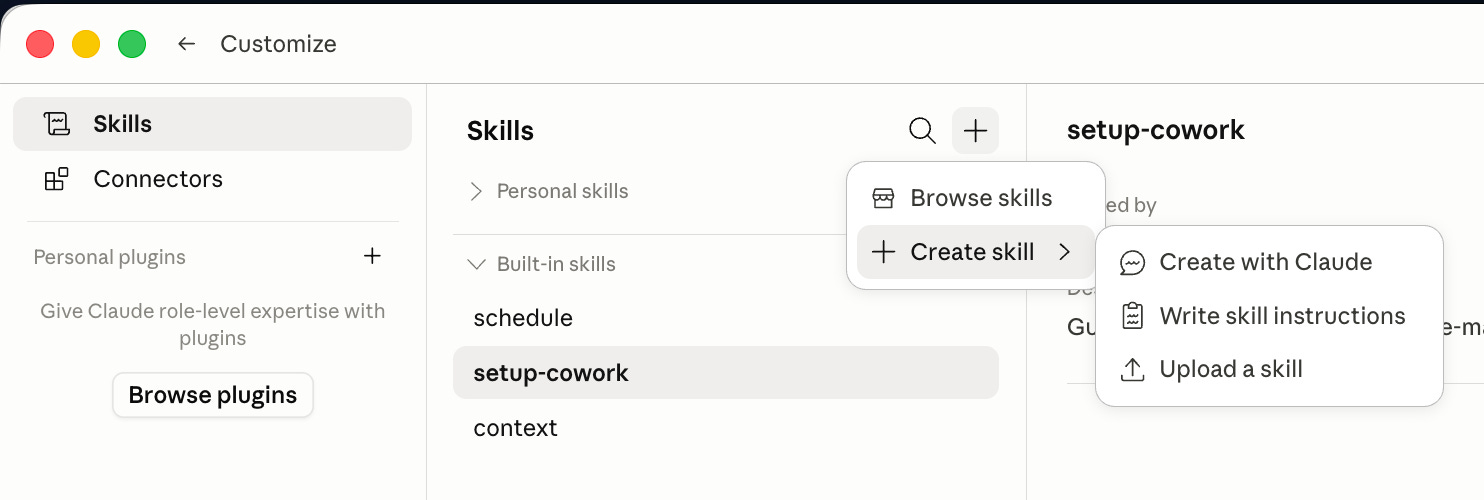
Next week I’ll walk through both methods for building skills, and why even if you never touch Cowork, skills alone change the way you work.
Prompting got you here. A workflow gets you further.
Pick the task you use AI for most this week. One question: does it need to run without you, or does it just need to remember itself?
That answer tells you where to start. Next week, I’ll show you the faster of the two.

PS - Let me know how it goes. I encourage you to share ….
Subscribers get the full Paperclip Installation Guide incl. Terminal commands including my explanations for dummies in the Resource section.
You are not a subscriber? Change it now!
This article is part of my ongoing series on making AI simple and useful for non-tech people. Subscribe to get future articles on AI tools that actually matter for everyday life. And if you found something that helped you - sharing is caring 😉