

Locked in.
Or: why I rebuilt my entire AI setup from scratch after one timezone change broke it all.

What you get in this article: the full step-by-step guide to setting up a VS Code project that works with Claude Code, Codex, and any future AI agent. A one-command trick to keep everything in sync automatically. And if you already have a Claude Cowork setup you want to migrate - the conversion prompt is in the subscriber chat (welcome email if you are new).
It was a Monday morning in Munich. I opened my laptop. 50% of my weekly Claude tokens were already gone.
I had just flown back from Vietnam. Different timezone. And while I was somewhere over the Gulf of Tonkin every scheduled task I had set up in Claude Cowork had been firing. On European peak hours. Burning through my token allocation in the exact window I’m supposed to be sleeping (not literally - Claude can’t run on a closed laptop without WiFi, I’m being dramatic. But you get the point.).
That was the moment I decided I was done.
1 - What I Had Built
For the past few months, Claude Cowork had been running my life. Scheduled tasks, live artifacts, weekly content workflows. Zero code. Serious automation.
It was genuinely useful. I had a content engine, a research tool, a weekly analytics summary - all running on autopilot while I worked my day job.
Then it started breaking.
Tasks failed silently. I fixed them. The fix broke something else. Fixing that cost more tokens. By the time I was done troubleshooting, I had spent more tokens debugging than the original task would have used.
And then Anthropic started quietly changing how much intelligence the models actually deliver. Not in a press release. Just... less. Results that were solid two weeks before started coming back wrong. Tasks I had not touched were suddenly producing garbage. More fixes. More tokens. More time I was not getting back.
It was a leak I could not close. And then I flew home to a half-empty token budget on a Monday morning.
2 - This Is Not a Claude Problem
The timezone was just the trigger. The real problem was that I had built everything inside one proprietary tool I do not control.
One subscription. One pricing tier. One company’s decisions about token limits, model updates, and how much intelligence to quietly dial down on any given week. I did not own my workflows. I rented them.
The math made it concrete. Upgrading to the next Claude tier costs €90 per month alone. Claude Code plus Codex together cost around €40 total. Same capability. Two agents. No single point of failure.
But the money is not even the main argument.
The main argument is this: if Claude Cowork changes its pricing tomorrow, deprecates a feature, or shifts the model again, every workflow I have built breaks. I start over. The longer I wait, the more there is to rebuild.
The most expensive thing in any AI setup is not the subscription. It is starting over.
3 - The Fix: Build in Files, Not in Tools
Here is what nobody tells you when you start automating with AI tools. The workflows are not the problem. The problem is where they live.
If your instructions, context, and project knowledge live inside a proprietary tool’s interface, you are locked in. If they live in plain text files you own, any agent can read them. You point a different agent at the folder and keep going.
This is what “tool-agnostic” means in practice. The agent is replaceable. The files are not.
My new setup:
VS Code as the project home. Claude Code as one agent. Codex (OpenAI’s coding agent) as another. The same setup works with Cursor, Windsurf, GitHub Copilot, Gemini CLI, or any future tool that does not exist yet. The moment something better ships, you switch. Your project knowledge moves with you.
I will be honest: I expected Codex to be the weaker option. It is not. I have been genuinely surprised by how proactive it is. It plans ahead, flags potential problems before touching anything, and explains its reasoning without being asked. Right now, for my workflows, it tops Claude Code.
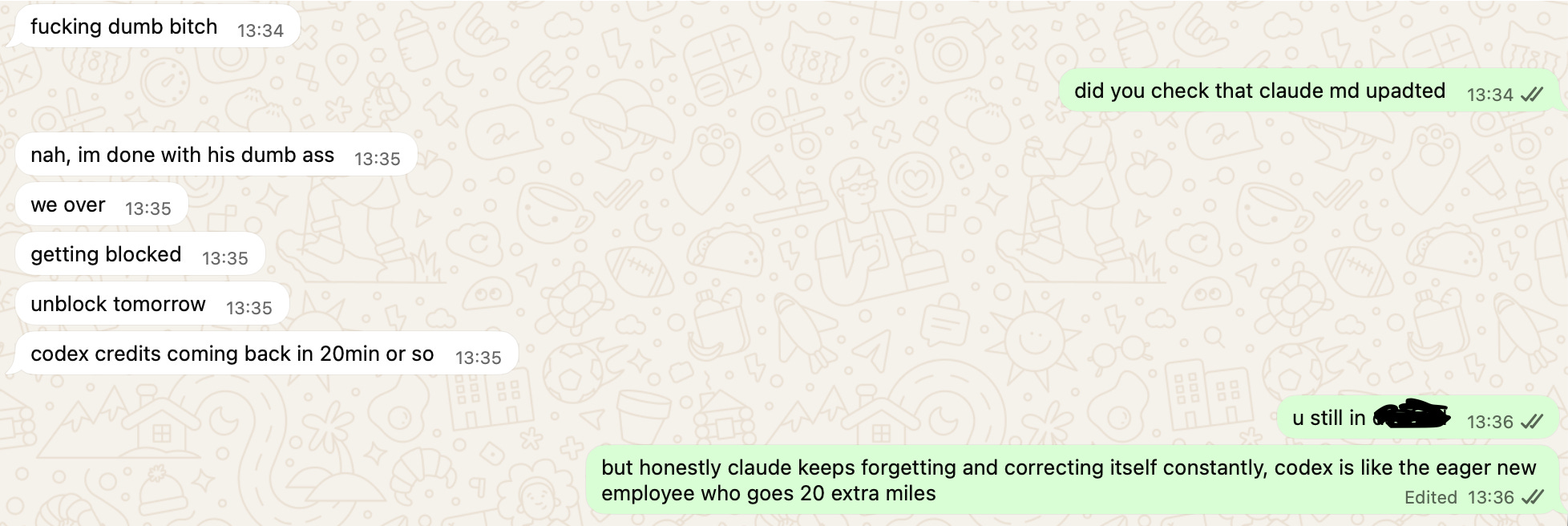
My developer friend was testing the setup at the same time. His verdict on Claude arrived in four messages: “fucking dumb bitch,” “nah, im done with his dumb ass,” “we over,” “getting blocked.” Then: “unblock tomorrow.” Then: “codex credits coming back in 20min or so.”
I sent him my take in the same conversation: “claude keeps forgetting and correcting itself constantly. codex is like the eager new employee who goes 20 extra miles.”
He did unblock Claude the next day. We are both still using both.
Note: To be fair, when Claude is behaving normally, it is still outperfoming Codex on most things that I use it for.
Already built in Claude Cowork and want to migrate?
Most people reading this are not starting from scratch. They have existing projects, tasks, and workflows they want to keep.
I built a full conversion prompt for exactly this. You paste it into Codex, it inspects your existing Claude project, creates all the adapter files automatically, and shows you the full plan before touching a single file.
Already subscribed? I posted it in the community chat.
Not subscribed yet? You will get it in your welcome email when you join.
If you are starting a fresh project, keep reading. The setup guide below is for you.
4 - How to Set It Up
A note before we start: this section is a bit more technical than what I usually cover. If you have never used VS Code, I wrote a full setup guide for non-technical professionals here:

Work through that first, then come back. It is worth learning now. The longer you wait, the more you build inside tools you do not own.
If you have a developer in your team, send them this article. They will have the whole thing running in an afternoon.
A. Start with a folder. Just a folder.
Here is the thing that makes this approachable: a “project” in this setup is not a special thing inside an app. It is literally a folder on your computer.
Create a folder anywhere. Desktop. Documents. Wherever you keep your files. Name it after your project. That is your project. Everything goes inside that folder - your instructions, your workflows, your config files. Plain text files in a plain folder.
Then open VS Code, go to File → Open Folder, and select that folder. VS Code will show everything inside it in the left panel. You edit files there. Your AI agents read from there.
That is the whole idea. No proprietary format. No sync. No cloud account required just to hold your files.
A note on creating files and folders: You can create every file and folder in this setup either directly on your computer (using Finder on Mac, File Explorer on Windows) or inside VS Code using the file panel on the left. Both work exactly the same way. Section 4D shows the full folder structure you are building towards - take a look there before you start so you know what the end result looks like.
B. Install the extensions - and no, you do not need the terminal
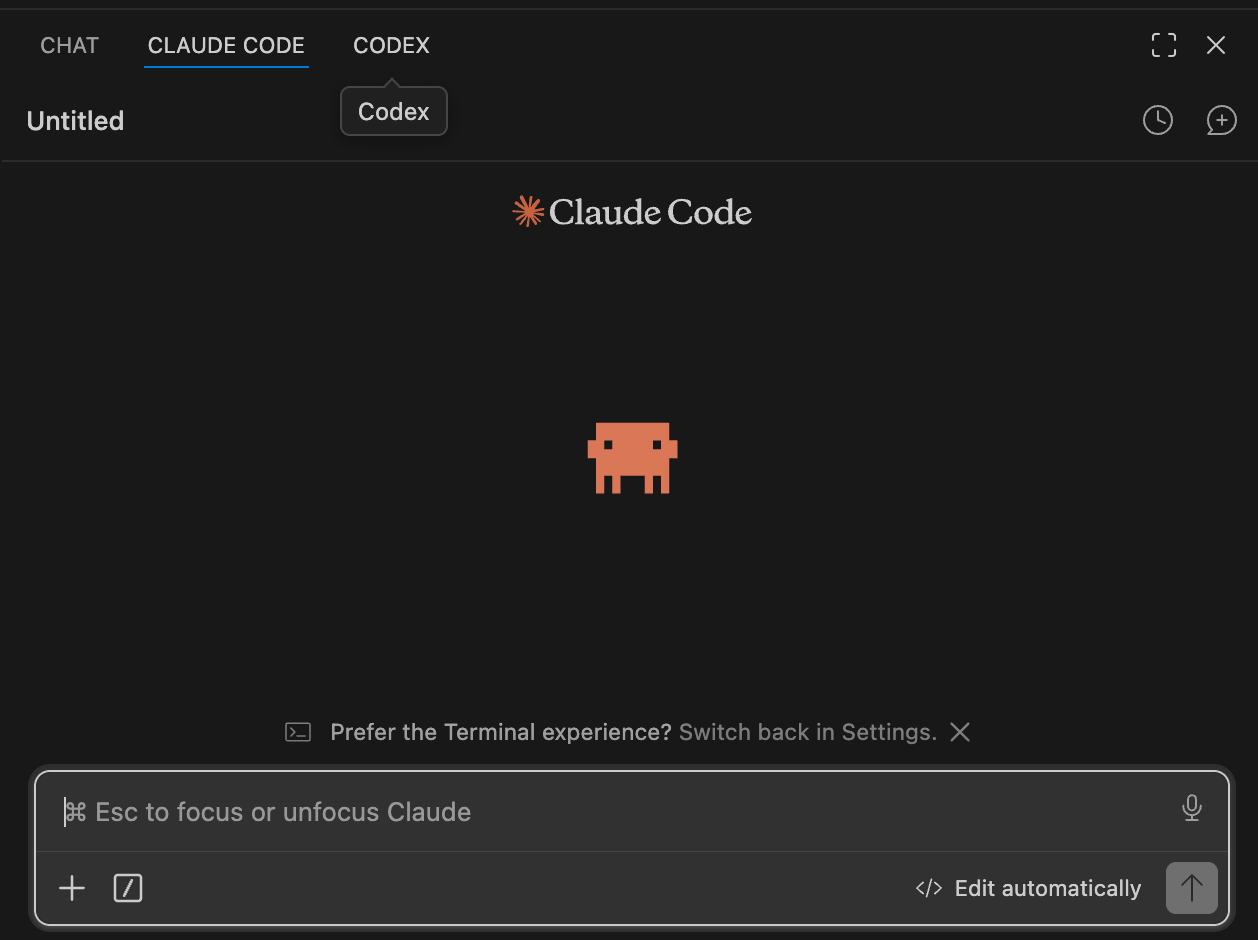
Both Claude Code and Codex have official extensions for VS Code with full chat interfaces. You type to them exactly the way you type in Claude.ai or ChatGPT. No terminal. No commands. Just a chat panel in your editor.
For Claude Code:
→ Click the Extensions icon in the VS Code left sidebar (it looks like four squares).
→ Search for “Claude Code.”
→ Install the one published by Anthropic.
→ A chat panel will appear. Sign in with your Anthropic account
For Codex:
→ Same process: Extensions icon
→ search “Codex”
→ install the one published by OpenAI.
→ A Codex icon will appear in the sidebar. Click it.
→ Click “Sign in with ChatGPT” and log in with your OpenAI account.
Both panels work like a chat window. You type what you want. The agent reads your project files and responds. Neither requires you to open a terminal for everyday use.
C. The file your agents actually read
Every AI coding agent needs a briefing document. A file it reads automatically when you open the project. Your instructions, your context, your goals - all in one place.
The open standard for this file is called AGENTS.md. It is not just OpenAI’s format. It is a cross-tool standard, now stewarded by the Linux Foundation, and used by Codex, Cursor, GitHub Copilot, Windsurf, Gemini CLI, and a growing list of others. Over 60,000 public repositories on GitHub already use it. The idea: write your project instructions once, and any agent can read them.
Claude Code uses a file called CLAUDE.md. Same idea, different name, Claude-specific format.
The solution: write everything in AGENTS.md. Then make CLAUDE.md point to it automatically. I will show you exactly how in the bonus section.
To create AGENTS.md in VS Code: right-click anywhere in the left file panel → New File → name it AGENTS.md. Then write your project instructions inside it.
Here is a simple starting template:
# Project Name

## What this project is
[Describe the project in 2-3 sentences]

## My goals
[What you are trying to accomplish with this project]

## How I want the agent to behave
[Your preferences: tone, approach, what to always do, what to never do]

## Important context
[Anything else the agent needs to know]
Do not overthink it. Three sentences is enough to start. You will update it as you go.
D. The folder structure
Beyond AGENTS.md, each tool has its own config folder inside your project. You do not need to understand all of it. Here is what matters:
Your project folder/
│
├── AGENTS.md          ← write your instructions here (the open standard)
├── CLAUDE.md          ← we will link this to AGENTS.md automatically
│
├── .claude/           ← Claude Code's config (created automatically)
│
├── .codex/            ← Codex's config
│   └── config.toml
│
└── docs/              ← shared knowledge both agents can read
Folders starting with a dot are hidden by default on Mac and Linux. VS Code shows them normally in its file panel. On your desktop you will not see them unless you enable “show hidden files” in your system settings - this is fine, you do not need to go into them manually.
Remember: every folder and file shown below can be created either on your computer the normal way (right-click on your desktop or in Finder/File Explorer → New Folder or New File) or inside VS Code using the left file panel. There is no difference. Use whichever feels more natural.
Create the docs/ folder by right-clicking in VS Code → New Folder → name it docs. This is where you put anything both agents should know about your project that does not belong in the briefing file itself: reference documents, templates, style guides. Both agents can read from here.
For the .codex/ folder: right-click → New Folder → name it .codex. Inside it, right-click → New File → name it config.toml. Paste this minimal starting config:
[model]
provider = "openai"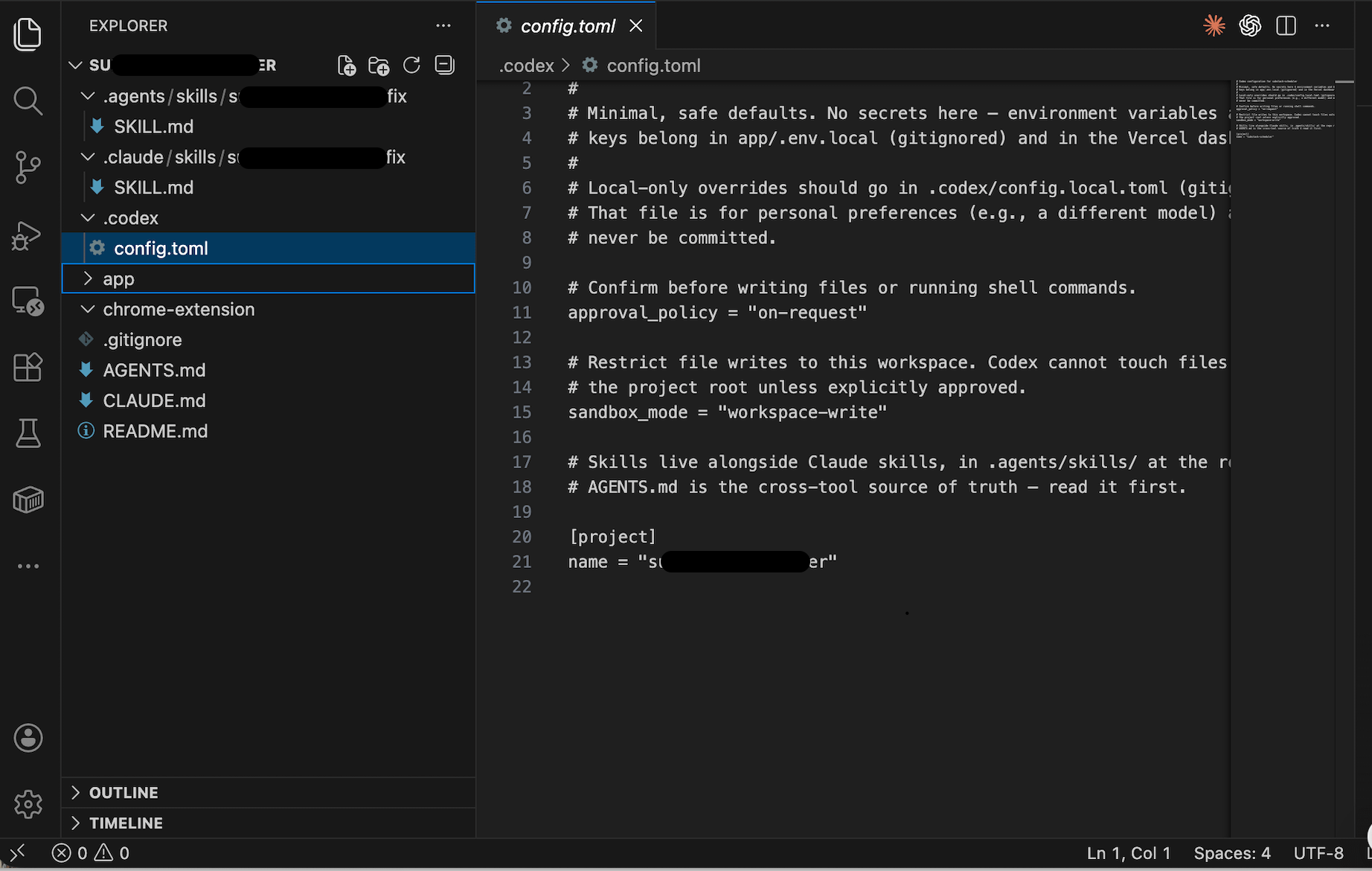
The .claude/ folder is created automatically by Claude Code the first time you run it. You do not need to create it manually.
E. The three-layer mental model
Before you start filling things in, this is the idea that makes the whole setup portable:
→ Layer 1: Shared knowledge. Anything both agents need to know. Lives in docs/. Write it once. Both agents read it. Never duplicate it inside a tool folder.
→ Layer 2: Skills (reusable workflows). Same format, two folders: .claude/skills/ for Claude Code, .agents/skills/ for Codex. Copy the same files into both.
→ Layer 3: Tool config. .claude/ and .codex/ are tool-specific. They configure different things and are not interchangeable.
The goal: your actual project knowledge lives in files any agent can read. The tool-specific folders are just adapters.
F. Four things that trip people up
✦ The .agents/skills/ folder is where Codex looks for reusable workflows - not inside .codex/. Create it at your project root: right-click → New Folder → .agents, then inside that, New Folder → skills.
✦ Agent definition files use different formats. Claude Code agent files end in .md. Codex agent files end in .toml. The instructions inside work the same way; the file format is different.
✦ The two config files (.claude/settings.json and .codex/config.toml) configure completely different things. Do not copy one into the other.
✦ Put shared knowledge in docs/. The moment you put project knowledge inside .claude/ or .codex/, only one agent has access to it. That defeats the purpose.
BONUS - The Symlink Trick
The laziest possible way to keep AGENTS.md and CLAUDE.md in sync. Permanently.
The problem: AGENTS.md is your source of truth. But Claude Code reads CLAUDE.md. If you keep two separate files, they will drift apart. You will forget to update one. Your agents will work from different instructions.
One terminal command. Run it once when you set up the project. Never think about it again.
On Mac or Linux, from your project root:
ln -s AGENTS.md CLAUDE.mdOn Windows - open Command Prompt as Administrator (or enable Developer Mode in Windows Settings first):
mklink CLAUDE.md AGENTS.mdCLAUDE.md is now a symbolic link. It is not a copy. When Claude Code reads CLAUDE.md, it is reading AGENTS.md directly. Every update you make to AGENTS.md is automatically what Claude Code sees. No sync step. No drift. No maintenance.
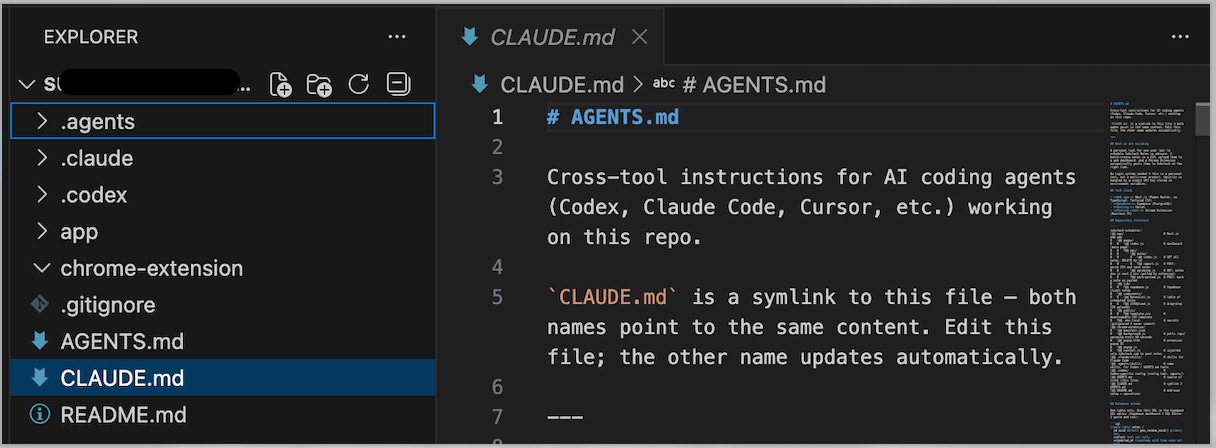
This is also why AGENTS.md is the right file to write in. It is the open standard. Every serious AI coding tool already reads it, and more are adding support every month. You write once. Every tool follows.
Don’t build workflows in tools. Build them in files.
Any agent can read a file. Not every agent can read a proprietary interface you don’t own.
Set it up , the sooner the better.

PS - If you are also comparing Claude Code and Codex, please let me know your experience. I am leaning towards Codex for everything other than writing at the moment.
Subscribers get the full migration prompt for Codex for existing projects in the Resource section.
You are not a subscriber? Change it now!
This article is part of my ongoing series on making AI simple and useful for non-tech people. Subscribe to get future articles on AI tools that actually matter for everyday life. And if you found something that helped you - sharing is caring 😉
Great to see this level of tech detail in a post. Agree on some points: provider and model lock in are definitely mostly avoidable treating both human readable and AI optimized data files as primitives.
Great article. I actually had Codex as standard for most work but now with 4.8 out I actually have to say I've swung the other way for the first time in ages... though I'm actually finding small practical tasks are done better with gemini flash 3.5 (e.g. creating scripts, small tests, etc.).